I should probably create another blog category called "Geek Fest" but having multiple displays for so many years, I can't believe I was never made aware of this Windows feature for so long.
During my recent plight of having to adjust to three displays instead of five individual displays, with the same amount of pixels, it has been an uphill battle to get comfortable with the lack of simple drag & drop to get into both my digital work environment and my digital play environment.
On average, it would take at least 6 or 7 clicks & drags to get both my work & play environments into place, even with the use of 5 separate displays, not to mention closing the previous workspaces, until Microsoft came to the rescue in two different ways that will likely change how I work, and play, moving forward. Both of these solutions come from one toolbox. Microsoft PowerToys.
Now I've been aware of Microsoft PowerToys ever since they first came out, although I think I only used one tool and it has been so long ago that I forget what that tool was, but having recently been researching solutions for managing windows on multiple ultra-wide displays, I really started digging in to all of the potential options and they all came down to one source.
While managing multiple virtual windows on actual physical displays landed me on the FancyZones solution that I have been using for a few weeks now, I decided to look at each individual PowerToys tool in depth last night and, of all of them, came across one more tool that will likely solidify my workflow moving forward. Workspaces!
Glancing over the tool's description, I dragged the shortcut to my desktop as a reminder to check it out in the morning thinking, "I doubt it's going to be able to distinguish between the multiple Microsoft Edge browser profiles that I use and dividing them between separate windows like I always do, but be sure to check this out tomorrow."
And that I did. And here I am!
After enabling Workspaces in Windows PowerToys that I have set to run on Windows startup, I selected the Workspaces icon from the Quick Launch PowerToys icon.
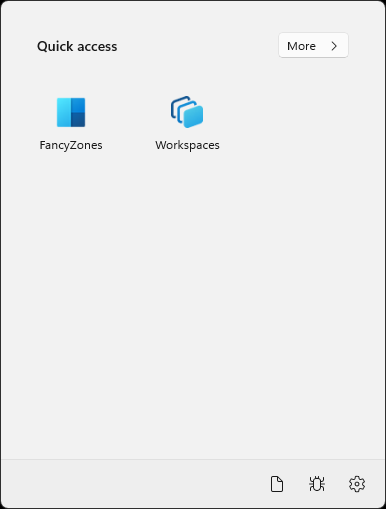
After creating a workspace and selecting EDIT WORKSPACE, I arranged all of my windows as normal, saved the "Play" profile, and closed all windows.
Next, I repeated the process for my "Work" profile.
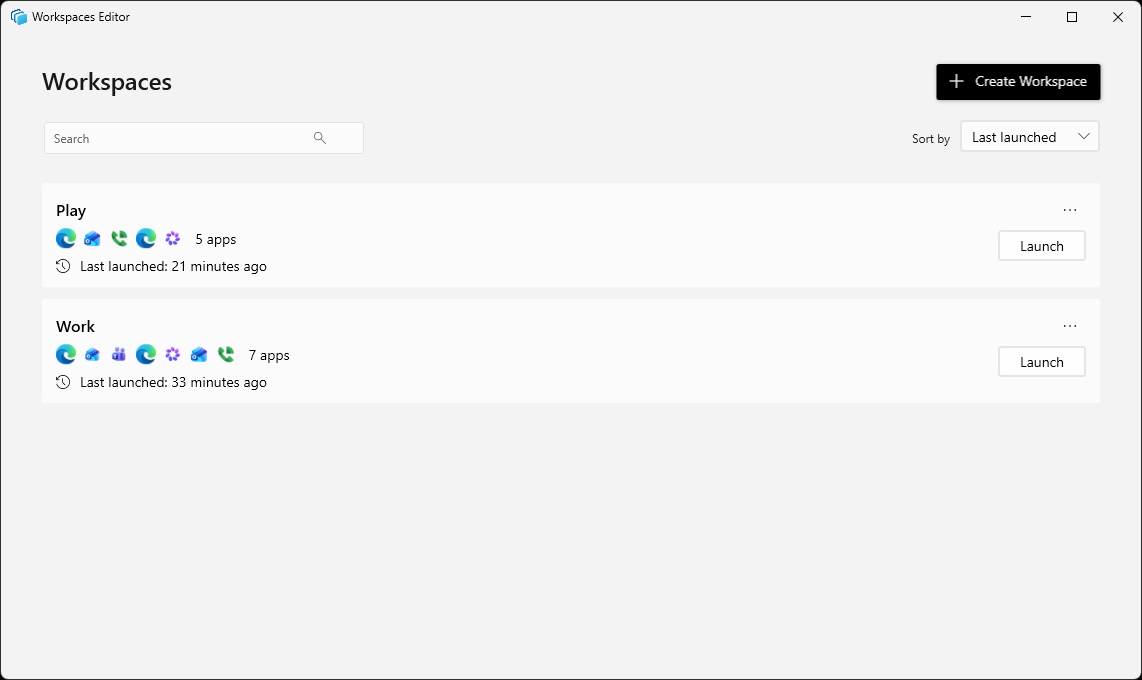
Upon first test, the browser windows opened up without a user profile assigned to them showing a blank homepage with no tabs. Oops!
A quick conversation with Meta AI (my new favorite assistant) called my attention to "CLI arguments", which quickly provided a solution for 1) specifying an Edge browser profile for each window and 2) specifying URLs for each window per virtual screen. Upon re-testing with the CLI argument updates, I quickly fell to my knees and praised Santa Claus for such a valuable gift that he decided to bestow upon my unworthy soul!
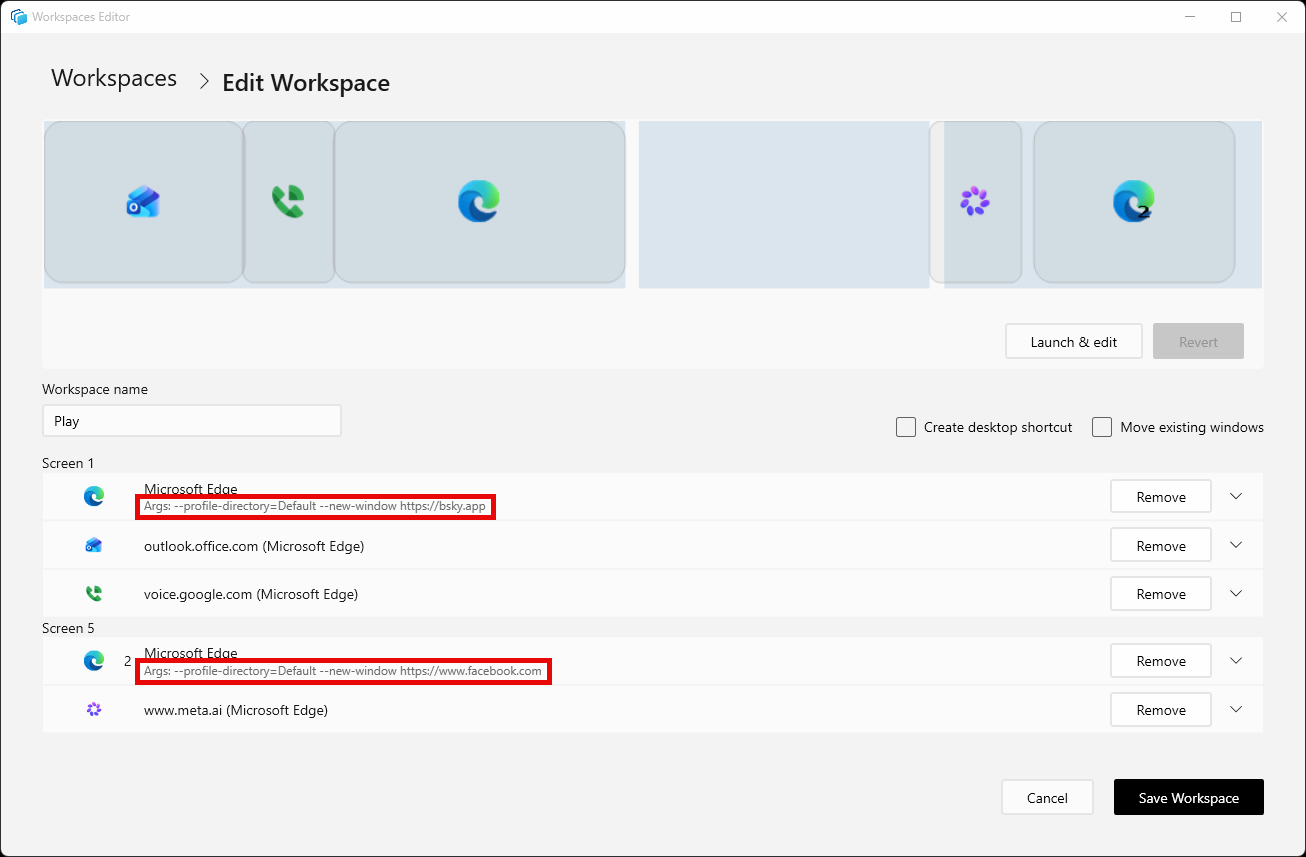
Workspaces presents the option to save the link to the workspace as a desktop shortcut (I'm SICK and TIRED of hotkeys, so THANK YOU SANTA CLAUSE), which can in turn be added to the Windows start menu or taskbar, so I edited the very generic shortcut icons with a few icons from the Windows imageres.dll file.

So now it's just one click and I'm all set!

Share To
About the Author

Currently a Lakewood Ranch, Florida resident, Philip has authored various interactive blog websites since the early 2000’s. Most content will be based primarily on matters of opinion as usual.





