I’m obsessed with “web apps”. If you look at my Windows 11 taskbar, half of the shortcuts are links to websites that I’ve installed “as an app” in the Edge browser. No “favorites” toolbar, no nonsense, and they remember their positioning on my screens. Examples below. One-click access to Meta AI, no searching shortcuts in…
I'm obsessed with "web apps".
If you look at my Windows 11 taskbar, half of the shortcuts are links to websites that I've installed "as an app" in the Edge browser.
No "favorites" toolbar, no nonsense, and they remember their positioning on my screens.
Examples below.
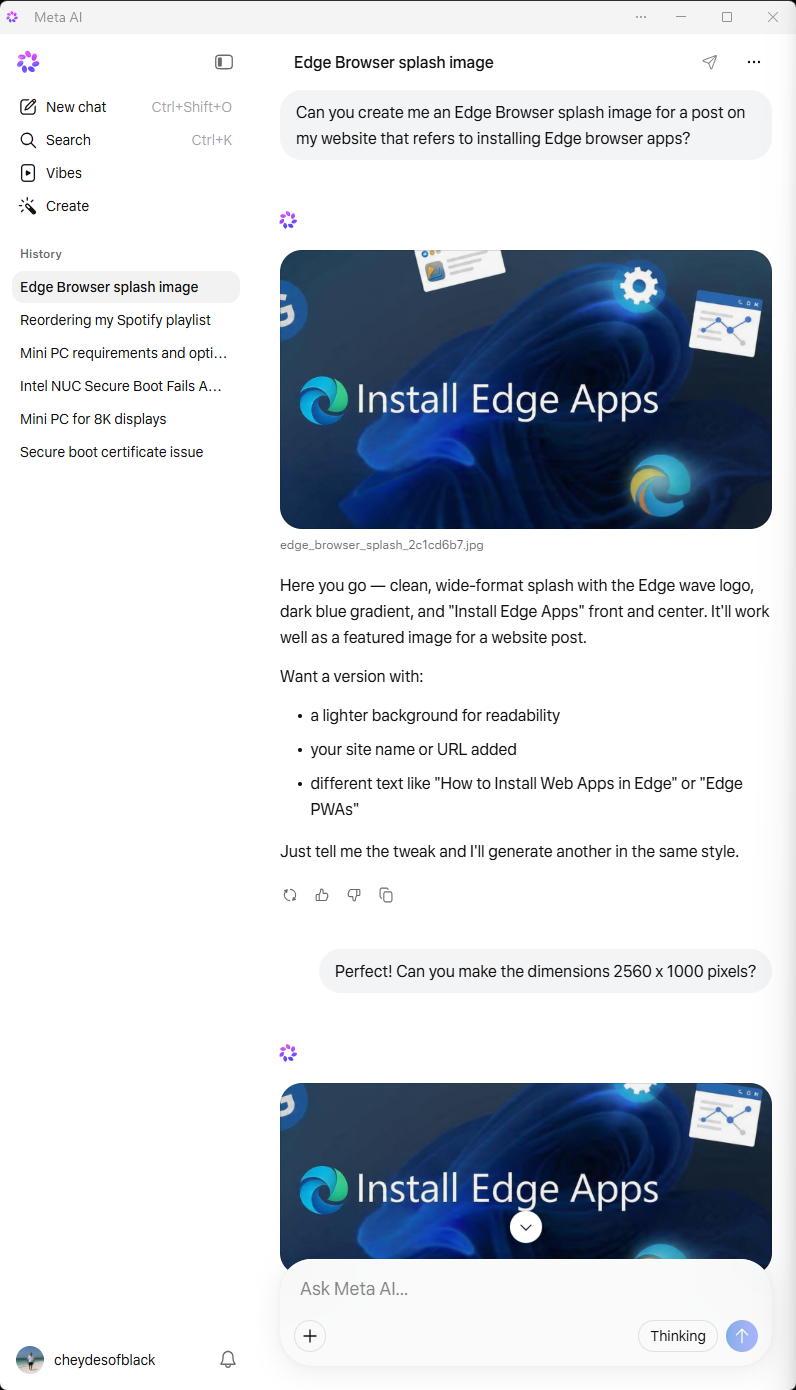
One-click access to Meta AI, no searching shortcuts in my browser--there when I need it.
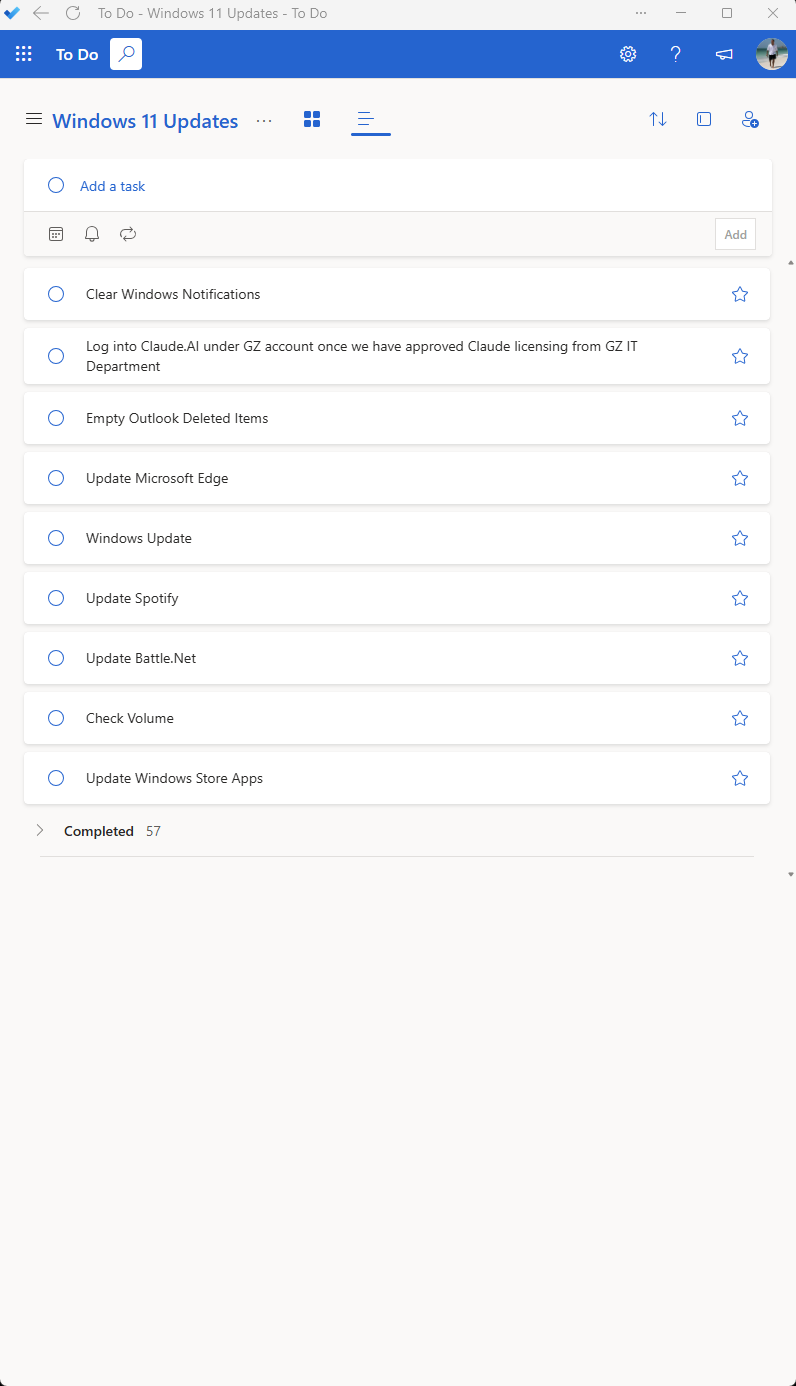
One-click access to Microsoft Outlook's "To Do" app. No having to navigate around in my email to get straight to the point with something that I need to note for myself as far as tasks.
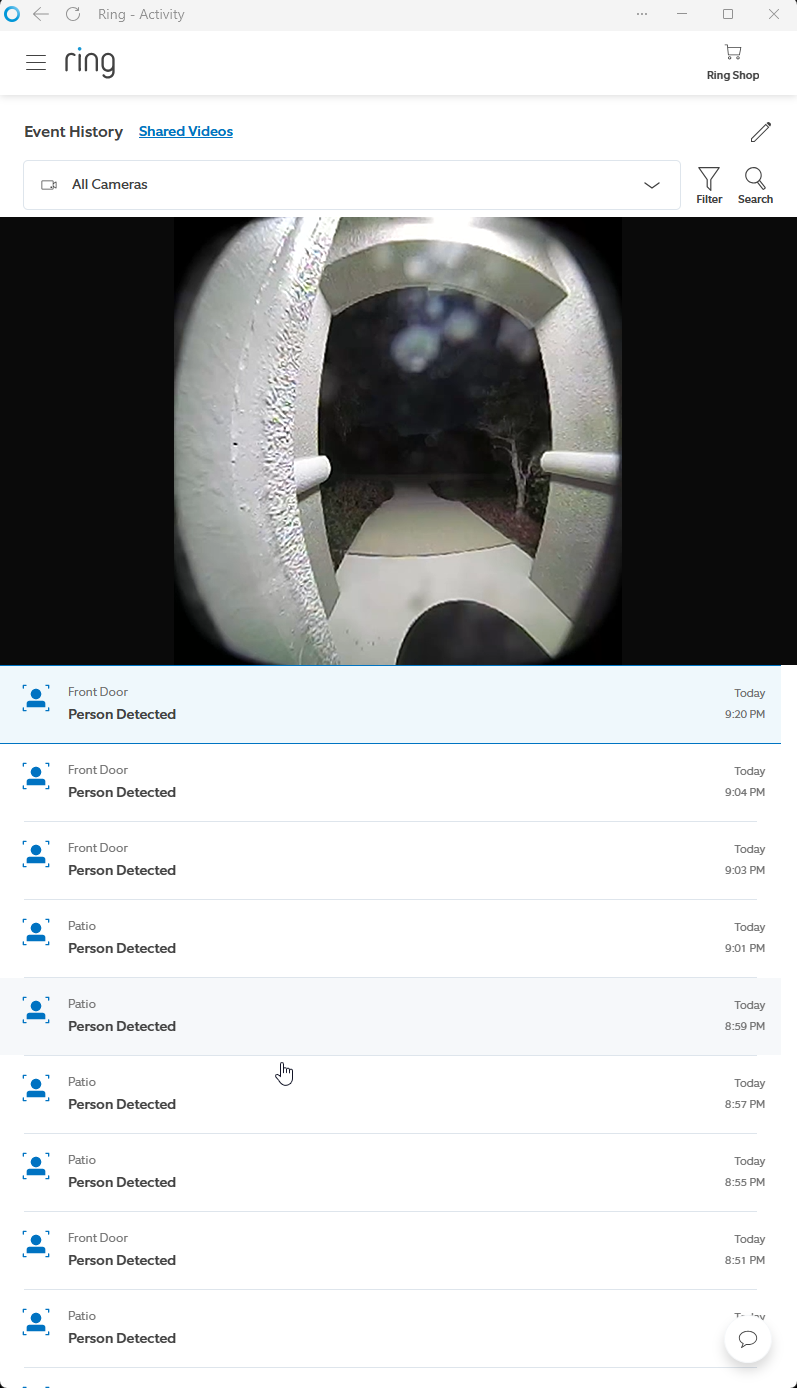
Ring Doorbell. No more having to locate the shortcut in my browser, navigate to the Ring page, log in, and by the time I do that, I'd just have better just walked down the stairs and answered the door to see who pushed the button. (Then again, I could ask "Alexa", but the AI version takes a long time to process questions & commands, so that defeats the purpose as well.)
"They all have apps for that", you say. Yeah, maybe, but the footprint of Edge apps is small compared to installing the actual apps and you constantly get the latest version of the app via the web version as opposed to prompts to "download an update".
An advantage for me, personally, and I know most people aren't obsessive about this process like I am, but when I do a backup and restore of my operating system, it takes about five minutes, compared to the time it would take to perform that process with the actual apps installed. Less disk space--always updated. A win/win!
So, what's the process for this?
Navigate to the website in your Edge/Chrome browser.
I don't use Chrome, but in Edge, you go to the three dots in the address toolbar to the right > MORE TOOLS > APPS > INSTALL THIS SITE AS AN APP. Opt to add the desktop and start menu shortcuts and you're good to go. I resize the app where I want it on my screens and it opens every time in the same place.
My Windows 11 toolbar below. All of the highlighted apps are "web apps" that just point to the Edge browser app. No nonsense--always updated. Personal Microsoft 365 Outlook email, personal Microsoft 365 "To Do" app, Ring doorbell, licensed Copilot for work, Meta AI, Google Voice (phone/text that I can access from all devices, e.g. iPhone, iPad, browser, and now as a "web app"), and Amazon Alexa's AI chat bot.

You will notice that the Alexa app shortcut on the very end of the above Windows 11 taskbar shows a generic icon with an "A" which does not reflect the updated branding of Alexa. If you have already installed the app there is no way to change it via the app settings, but you can reinstall it, or update the icon, during the first installation, by selecting the EDIT button next to the generic one before opting to install. Download the following icon file to your desktop, unzip it, then select it during the app installation.

Exceptions to the rule.
Microsoft Outlook - Business Version
I like my audio email notifications to match my phone's notifications, so I know if it's a work or personal email notification regardless of which device I'm on. With the web app, you can't customize the audio notification so I'm sticking with the software installation for work because it's a priority.
Microsoft Teams
Teams is soooooo glitchy! I'd LOVE to switch to the always updated version of the web app, but unfortunately you can't open a meeting in a new window. That killed it for me.
I'm fine with the web version of Facebook. What I would prefer is a dedicated web app for Facebook Reels--which I've gravitated to more than TikTok these days due to privacy and ownership reasons--but you can't dedicate the app version of Facebook specifically to the Reels tab, so it kind of defeats the purpose for me.
Call of Duty (Gaming)
Obviously not gonna happen.
Share To
About the Author

Currently a Lakewood Ranch, Florida resident, Philip has authored various interactive blog websites since the early 2000’s. Most content will be based primarily on matters of opinion as usual.